Published
If your PS5 is stuck in Safe Mode, first choose Restart PS5. If it returns to Safe Mode, fully power the console off, unplug it for 20 minutes, reconnect it, and try again. Sony’s next recommended step for a repeating Safe Mode boot is Clear Cache and Rebuild Database > Clear System Software Cache. Do not jump straight to Reset PS5: the two reset options erase user data, and the reinstallation option also removes the system software.
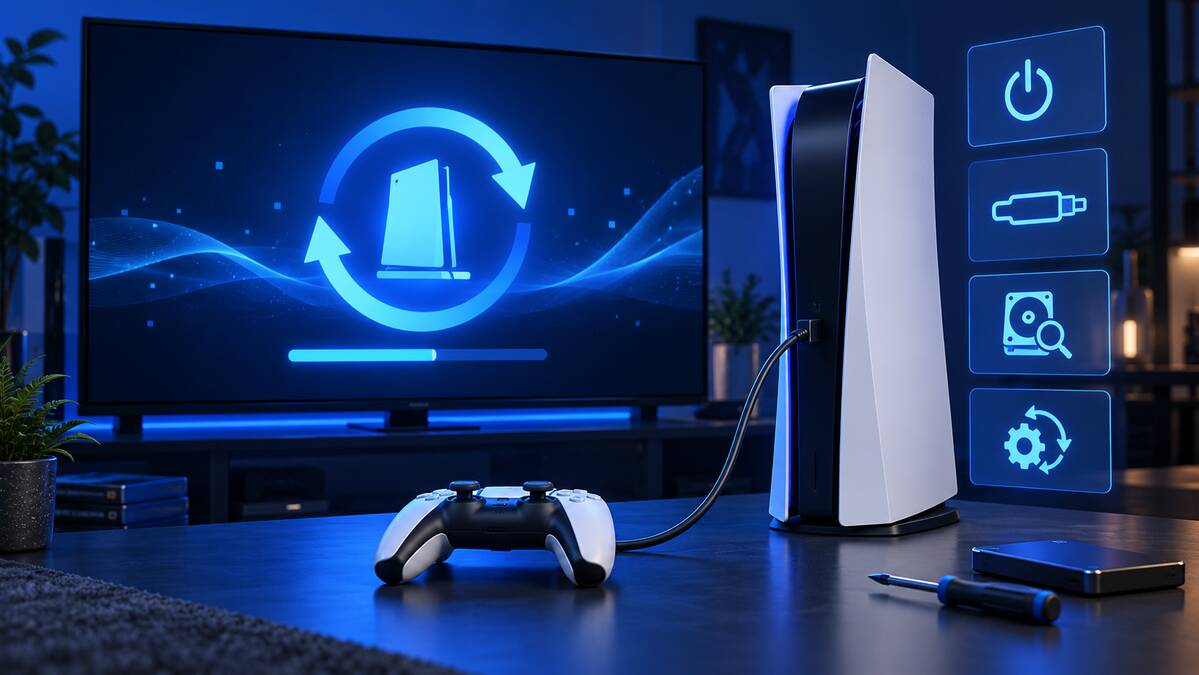
This guide covers two different problems: a PS5 that keeps starting in Safe Mode and a PS5 that will not display Safe Mode. The correct first checks differ, so use the section matching what you see.
PS5 Safe Mode fixes at a glance
| What you see | Try first | Does it erase data? |
|---|---|---|
| Safe Mode menu appears once | Restart PS5 | No |
| PS5 repeatedly returns to Safe Mode | 20-minute power cycle, then clear system software cache | No |
| PS5 will not start normally or reports storage trouble | Repair Console Storage | No, according to Sony |
| System features behave incorrectly or performance drops | Clear System Software Cache | No user-data reset |
| Database or content-list problems persist | Rebuild Database | Scans the drive and rebuilds the content database |
| Blank screen prevents you seeing Safe Mode | Check HDMI connection and try another cable | No |
| Safe Mode will not launch | Test USB, HDMI and power cables, then power cycle | No |
| Update failure prevents startup | Update System Software, then use an official USB update if required | An update is not the same as a reset |
| All safer recovery steps fail | Back up what you can, then evaluate reset or repair | Reset options erase user data |
How to start a PS5 in Safe Mode correctly
Use Sony’s exact startup sequence before assuming Safe Mode is broken:
- Turn the PS5 completely off by holding the power button for three seconds. Wait for the blinking power indicator to stop.
- With the console off, press and hold the power button again.
- Keep holding through the first beep. Release the button after the second beep, which Sony says comes about seven seconds later.
- Connect a DualSense controller to the PS5 with a USB cable.
- Press the PS button on the controller.
A cable that only supplies power may charge the controller without carrying the data needed for this screen. If pressing the PS button does nothing, try a known data-capable USB cable and another USB port before blaming the controller. For wider pairing and charging problems, use our DualSense connection and charging guide.
If your PS5 keeps booting into Safe Mode
1. Try Restart PS5 once
Restart PS5 exits Safe Mode and attempts a normal startup. It is the first option because it does not reset the console. If the PS5 returns to the same menu, stop repeating it and continue with the power cycle.
2. Perform Sony’s 20-minute power cycle
- Press and hold the console’s power button until it beeps.
- Wait for the screen to go blank, the indicator to flash white, and the console to switch off.
- Disconnect the power cable.
- Leave the PS5 disconnected for 20 minutes.
- Reconnect the power cable and turn the console on.
This is longer than a quick unplug-and-reconnect. Follow the full waiting period specified in PlayStation’s Safe Mode troubleshooting guide.
3. Clear the system software cache
If the console still returns to Safe Mode, Sony directs PS5 owners to:
- Select Clear Cache and Rebuild Database.
- Select Clear System Software Cache.
- Select OK.
Clearing the cache targets temporary system information. It is the more conservative choice inside this submenu and should come before rebuilding the database when the specific problem is a repeated Safe Mode boot.
4. Use Repair Console Storage when startup or storage is the problem
Repair Console Storage is intended for a PS5 that does not start properly or has storage issues. Sony explicitly says this option does not erase data. It is different from resetting the PS5 and different from reinstalling system software.
If you added an M.2 drive and the trouble began around a storage change, do not assume external USB storage and the internal M.2 slot follow the same rules. Our PS5 storage comparison explains what each type can run and store.
5. Rebuild the database if content indexing remains broken
Rebuild Database scans the drive and creates a new database of the content on the system. Sony points to this option for system-feature problems and cases such as a deleted game icon remaining on the Home screen.
Rebuilding the database is not the same command as Reset PS5. Even so, allow the process to finish without interrupting power. Start with Clear System Software Cache if the console’s main symptom is simply looping back into Safe Mode.
If PS5 Safe Mode will not appear
When the console seems to enter recovery but the television shows nothing, the problem may be the display path rather than Safe Mode itself. Sony recommends checking the HDMI connection and trying different USB, HDMI or power cables, testing Safe Mode again after each change.
- Confirm that the television is using the correct HDMI input.
- Reconnect both ends of the HDMI cable.
- Try another HDMI port on the display if one is available.
- Test a different HDMI cable.
- Try a different USB data cable for the controller.
- Inspect the power connection and test a compatible cable if available.
- Repeat the 20-minute power cycle before trying Safe Mode again.
If Safe Mode opens but the normal picture is blank, Change Video Output provides Change Resolution and Change HDCP Mode choices. Sony identifies these as troubleshooting options for blank-screen problems.
What every PS5 Safe Mode option does
| Option | Purpose | Data warning |
|---|---|---|
| Restart PS5 | Exit Safe Mode and start normally | No reset |
| Change Video Output | Change resolution or HDCP mode for display trouble | No reset |
| Repair Console Storage | Address startup or storage problems | Sony says it does not erase data |
| Update System Software | Install an update by download or USB | Use official Sony update files |
| Restore Default Settings | Restore default factory settings | Sony says games, apps, captures and saved data remain |
| Clear Cache and Rebuild Database | Clear temporary system data or rebuild the content database | Not a factory reset |
| Reset PS5 | Restore the console to its original state | Deletes all user data |
| Reset PS5 (Reinstall System Software) | Erase the console and reinstall firmware | Deletes all user data and removes system software |
How to update PS5 system software from Safe Mode
If an interrupted or failed system update is preventing startup, choose Update System Software. The PS5 can attempt a direct download. If that fails, Sony provides a manual USB process:
- Format a USB drive as FAT32 or exFAT using a PC or Mac.
- Create a folder named PS5, then create an UPDATE folder inside it.
- Download the current update file from Sony’s official PS5 system software page.
- Save the file as PS5UPDATE.PUP inside the UPDATE folder. The folder and file names must be uppercase.
- Connect the USB drive, start the PS5 in Safe Mode, and select Update System Software > Update from USB Storage Device > OK.
Use the update file, not the larger reinstallation file, unless you have deliberately reached the final erase-and-reinstall step. Sony warns against installing unofficial or modified update data.
Before selecting Reset PS5
The two reset commands are not ordinary troubleshooting toggles. Reset PS5 deletes all user data. Reset PS5 (Reinstall System Software) deletes all user data and removes the installed PS5 firmware. Sony describes the reinstallation choice as a last troubleshooting step.
If the console can still reach its normal menus, back up important data first. Depending on what is available, Sony supports a console backup file, PlayStation Plus cloud storage for eligible saved data, and separate handling for supported USB or extended storage. Sync trophies as well. Deleted local data cannot be restored unless you already have a usable backup or cloud copy.
For a reinstallation, use Sony’s official instructions and reinstallation file. The USB folder layout remains PS5/UPDATE/PS5UPDATE.PUP, but the file must come from the “Reinstall system software” section. Selecting Reset PS5 (Reinstall System Software) with that file is the destructive final step—not an alternative way to perform a routine update.
When to stop troubleshooting and request repair
Use PlayStation Repairs if Safe Mode still cannot launch after cable checks and a full power cycle, if storage repair and the official update process repeatedly fail, or if the console shows signs of physical damage. Repeating resets will not repair a failed power supply, damaged HDMI port or storage hardware.
If the console is under warranty, avoid opening it or using unofficial firmware. Record the serial number and describe which Sony procedures you completed. That gives support a clearer starting point and avoids repeating destructive steps unnecessarily.
Bottom line
For a PS5 stuck in Safe Mode, use this order: Restart PS5, complete the 20-minute power cycle, clear the system software cache, repair console storage when appropriate, rebuild the database if needed, and update the system software. Treat Reset PS5 and Reset PS5 (Reinstall System Software) as last-resort choices only after understanding that both erase local user data.
Procedures checked October 25, 2026 against current US PlayStation support documentation. Menu wording may change with later system-software updates.
Leave a Reply