Published
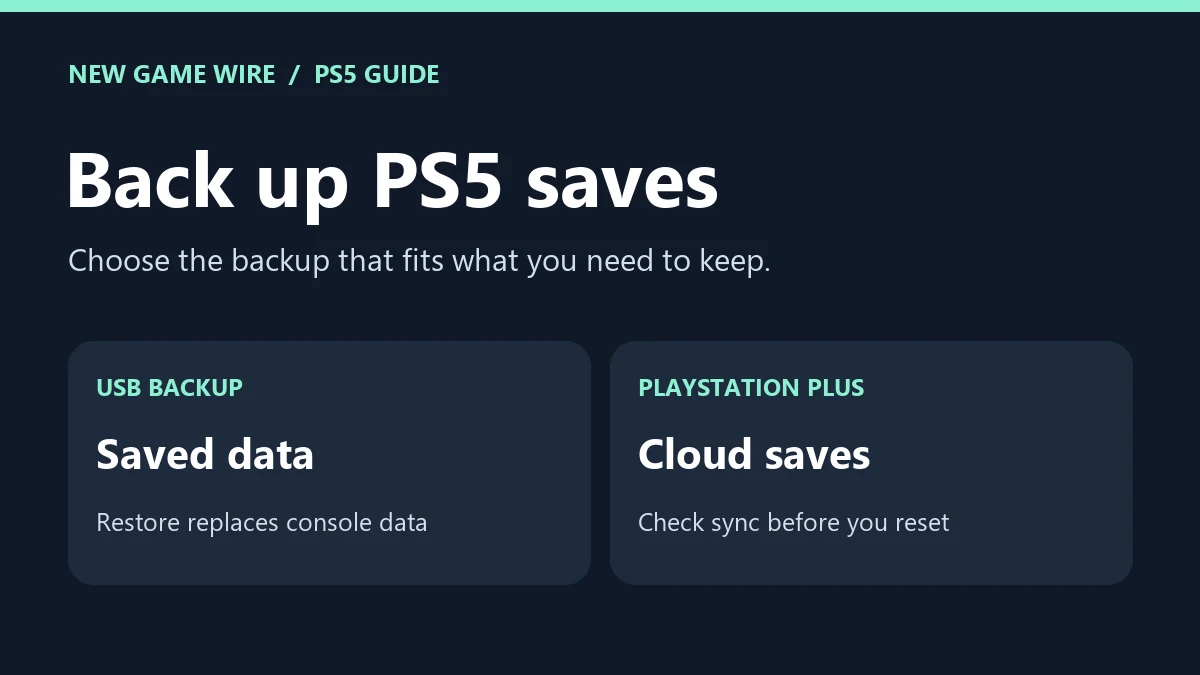
If your PS5 still opens Settings, back up your saves before you reset it. Without PlayStation Plus, use the console’s USB backup tool. It can include PS5 game saves, but restoring that backup wipes the data currently on the console. If you have PlayStation Plus and only need one game’s save, check its cloud copy before doing a full backup or restore.
- Before a reset: Make a USB backup and wait for the completion screen.
- Need one PS5 save: Check the cloud copy for that game if you have PlayStation Plus.
- Can’t reach Settings: Check your recovery options before you erase the console.
Back up PS5 saves to USB without PlayStation Plus
- Connect a FAT32 or exFAT USB drive with space for the backup. Use a separate drive if your current one is formatted as PS5 USB extended storage for games. The extended storage drive can’t hold this backup in that format.
- On the PS5, open Settings → System → System Software → Back Up and Restore → Back Up Your PS5.
- Include Saved Data. If you only need to protect progress, leave games and apps out of the backup. Add captures or settings if you want those too. Review the size shown before you start.
- Start the backup and leave the console powered on through the restart. Wait for Backup complete before you count the USB copy as ready.
Trophies and games installed on an M.2 SSD or extended USB storage are outside the console backup. Sony recommends syncing trophies separately. For the menu screenshots and drive requirements, see PlayStation’s USB backup instructions.
Check the cloud copy before you reset
With PlayStation Plus, highlight a PS5 game on the home screen, press the controller’s Options button and select Check Sync Status of Saved Data. If you’re checking several games, use Settings → Saved Data and Game/App Settings → Saved Data (PS5) → Sync Saved Data → View Sync Status. Make sure the saves you care about are synced before you erase their local copies.
This is especially useful if you only want to recover one title later. The cloud tools can download a game’s saved data individually. Sony documents a separate USB copy option for PS4 game saves. For PS5 saves without cloud storage, use the USB console backup above. PlayStation Plus cloud storage · PlayStation’s save transfer options
Before you restore from USB
Stop if the console now holds progress you want to keep. Restore replaces the data already on the console with what was backed up. It doesn’t merge newer local saves with the older backup. The destination PS5 also needs system software at least as recent as the version used to make the backup. If you’re restoring to a different PS5, sign in with the account used for the backup. An offline backup made without ever signing in can only be restored to the original console.
Once you’re ready, connect the backup drive and go to Settings → System → System Software → Back Up and Restore → Restore Your PS5. Leave the console powered on until the restore finishes. Sony says a restore disables Console Sharing and Offline Play, so check that setting afterward if you use it. PlayStation’s restore instructions
What if your PS5 only starts in Safe Mode?
The USB backup tool is in the normal Settings menu. If you can’t get there, check whether you already have a USB backup or a synced cloud save. If you’re unsure and the console is offering a reset, stop before confirming it. Start with the steps that preserve local data in our PS5 Safe Mode troubleshooting guide.
Watch how PS5 USB backup and restore works
YourSixStudios walks through the console backup menu. If you only need your saves, select Saved Data when creating the backup. Restoring a backup erases the data already on the console.
Reddit comments
This r/playstation thread discusses the difference between including only saved data in a backup and restoring that backup to the console. Check PlayStation’s instructions above before restoring.
Comment
by u/hereToStay1969 from discussion
in playstation
Leave a Reply